
You can add your Deep Sentinel PoE cameras to a network video recorder (NVR) for 24/7 recording, a multi-camera view on a monitor, footage backup to an external drive, and local recording that continues if your internet goes down. Your Deep Sentinel hub still sends events to the Deep Sentinel Guards, so each property still needs a hub.
Most NVRs that support ONVIF or RTSP cameras work. Deep Sentinel has certified the Uniview NVR502-B-P Series. Other brands may need some settings adjusted, so test after installing.

Contents
- Keep the cameras on the same network as the hub
- Use the default camera credentials
- Create a view-only user for the NVR
- Add the cameras to the NVR with ONVIF first
- Check the settings the NVR must leave alone
- Test, restart the NVR, and test again
- Find a camera's RTSP URL
- Troubleshooting
1. Keep the cameras on the same network as the hub
The hub only sees cameras on its own subnet.
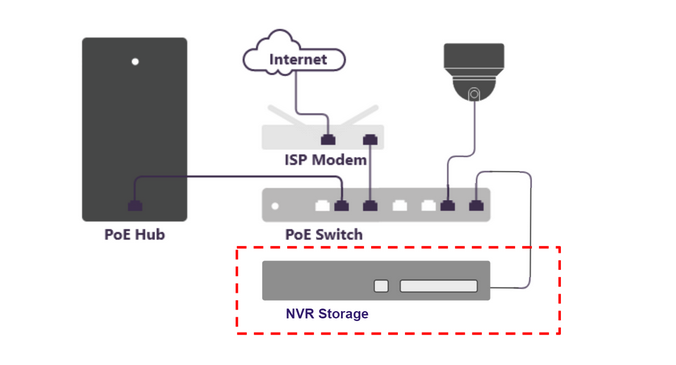
- Connect the cameras to the same PoE switch as the hub. Do not use the NVR's built-in PoE ports: they put the cameras on the NVR's internal network, often with 172.x or 192.168.x addresses the hub cannot reach.
- If the NVR has an uplink port and a camera port, connect the uplink port to your network switch.
- The NVR can still record cameras on your main network.
- Reserve each camera's IP address in your router (DHCP reservation) so a router restart does not change it. A changed IP address disconnects the camera from the NVR.
2. Use the default camera credentials
| Username | Password |
| admin or deepsentinel | deepS3ntin3l or deepS3ntin3l_ |
The combination that works depends on the camera model, so try each.
Do not change the password on admin or deepsentinel. The hub uses these accounts to manage the cameras, and changing them takes the cameras offline in Deep Sentinel. If you do change the password, you can delete and re-add the cameras in the Deep Sentinel app to update the credentials.
3. Create a view-only user for the NVR
Some NVRs change camera settings, such as the video codec, audio or motion detection, to values the hub does not support. An NVR that signs in with a view-only user cannot make those changes.
- Open a web browser and enter the camera's IP address.
- Sign in as admin. Only the admin user can create new users.
- Open the user settings and add a user (for example, "nvr") with live view and playback permissions only.
- Save, then repeat for each camera.
A view-only user stops future changes. It does not undo changes the NVR already made, so if the NVR was connected before, check the settings in section 5 first.
4. Add the cameras to the NVR with ONVIF first
- Add each camera in the NVR by automatic discovery or by IP address.
- Enter the view-only user from section 3.
- Choose a protocol in this order:
| Protocol | When to use it |
| ONVIF | Try this first. On a Uniview NVR, use it for Deep Sentinel-branded cameras. |
| Private | Uniview-branded cameras on a Uniview NVR. |
| Custom or RTSP | Backup if ONVIF doesn't work. |

5. Check the settings the NVR must leave alone
- Video codec: H.265 on stream 1 and stream 2 is recommended; H.264 is also supported. Never use MJPEG. The Deep Sentinel app and the Guards use stream 2 for live view. If the NVR has an "Auto Switch to H.265" option, it can stay on.
- Stream 2 frame rate: at least 15 FPS.
- Audio: set Audio Output to Speaker for the built-in speaker or Line for an external speaker, and enable the microphone. An audio output that does not match your hardware breaks live view.
- Motion detection: on.
For the full list of camera settings, see this article.
6. Test, restart the NVR, and test again
- Open live view for each camera in the Deep Sentinel app.
- Walk in front of each camera and confirm the app shows an event and it escalates to the Guards.
- Restart the NVR, wait for it to come back online, and repeat steps 1 and 2.
If something breaks only after the restart, the NVR is changing camera settings. Go back to sections 3 and 5.
7. Find a camera's RTSP URL
- Open a web browser and enter the camera's IP address.
- Sign in with the camera credentials.
- Go to Configuration > Network > Basic Set > Other.
The format depends on the camera model. Examples:
- rtsp://username:password@CameraIP:554/media/video1 (stream 1) and /media/video2 (stream 2)
- rtsp://CameraIP:554/1/1 (stream 1) and /1/2 (stream 2)
RTSP uses port 554. ONVIF commonly uses port 80.
8. Troubleshooting
| What you see | What to check |
| Camera is online in the NVR but offline in the Deep Sentinel app | The camera is on the NVR's PoE ports or internal network, or its IP address changed (see section 1). Also check that the camera's time syncs with NTP. |
| Live view does not load in the app | Stream 2 was changed to MJPEG, or the audio output does not match your speaker (see section 5). |
| Events are not reaching the Guards | The NVR changed the codec or motion settings. Reset them, then use a view-only user. |
| Camera settings keep reverting | The NVR is signed in as admin or deepsentinel. Switch it to the view-only user, or to RTSP as a last resort. |
| The NVR rejects the camera login | Try each credential combination in section 2, then delete the camera from the NVR and add it again. |
| Camera works in the app but not in the NVR | Delete the camera from the NVR and add it again. |
Looking for an NVR? Deep Sentinel offers the certified Uniview NVR502-B-P Series. Customer Care is glad to help with setup questions for any NVR wherever we can. For an NVR someone else installed, your installer will have the login.