SLM (Service License Management) is Deep Sentinel's process for managing billing for you and your customers in a streamlined way. All new hubs and cameras require a license before they can be onboarded to the app.
Table of Contents
- What is the difference between Direct Billing and Remit Billing?
- What is the 5-Day Dealer Grace Window?
- How to Access the 5-Day Dealer Grace Period
- Can Devices Be Added Before Payment?
- Important Information About Dealer Payment Methods
- When is a Subscription Created?
- What if I have an existing customer with multiple properties under Remit Billing?
- Existing Customers Using Remit Billing
- How can my customer purchase licenses?
- Example Scenario of adding a new customer
- How do I manage an existing customer in the new SLM?
- Billing Support Contact Information
- Steps to Add New Customers And Properties After The SLM Update
What is the difference between Direct Billing and Remit Billing?
-
Direct Billing - The partner bills the customer directly. Deep Sentinel bills the partner after commission adjustments.
-
Remit Billing - Deep Sentinel bills the customer directly. The partner receives commission from the subscription.
What is the 5-Day Dealer Grace Window?
For Remit customers only, the 5-Day Dealer Grace Window allows partners to complete installations before the final subscription and licenses are officially purchased.
This 5-day window appears during the license purchase flow after selecting the number of hubs and cameras needed for the property.
The standard grace period lasts for 5 days, but if additional installation time is needed, please contact Customer Care to extend the temporary window.
Please note:
- If licenses are not purchased before the grace period expires, system escalations will become disabled until licensing is completed.
How to Access the 5-Day Dealer Grace Period
After selecting the required licenses:
- The app will take you to the payment screen
- The dealer payment method on file may appear automatically
- Select “Other Payment Methods”
- Choose “5-Day Dealer Grace Period”
This allows the installation to continue temporarily without immediately creating an active subscription.
Can Devices Be Added Before Payment?
Yes, devices can be temporarily onboarded during the 5-Day Dealer Grace Period.
However:
- Hub and camera licenses must eventually be purchased for the system to remain active
- Every property requires at least 1 Hub license
- Only Remit customers can activate grace period. Direct payments require immediate license purchase.
Important Information About Dealer Payment Methods
All dealers are required to maintain at least one payment method on file within the platform. Because of this, the dealer card may appear automatically during setup.
Important:
- Customers cannot view dealer payment information
- Selecting the grace period does NOT charge the dealer
- A subscription is NOT created until licenses are officially purchased
When is a Subscription Created?
A subscription is only created once licenses are officially purchased by either:
- The dealer
- The customer
Simply onboarding devices or using the 5-day grace period does NOT activate billing or create a subscription.
What if I have an existing customer with multiple properties under Remit Billing?
If the customer is intended to be billed directly under Remit Billing, the customer should complete the final license purchase through their own Deep Sentinel app login.
Example:
A dealer may temporarily onboard the system during installation using the 5-Day Dealer Grace Period. Once installation is complete, the customer must still log into their app to purchase the licenses and activate the subscription under their own payment method.
Existing Customers Using Remit Billing
If the customer will be billed directly through Remit Billing, the customer must complete the final license purchase using their own Deep Sentinel app login.
Example:
A dealer may temporarily onboard the system during installation using the grace period. Once installation is complete, the customer must log into their app and complete the license purchase using their own payment method.
How can my customer purchase licenses?
Please provide the following instructions to the customer:
- Open the Deep Sentinel app
- Navigate to:
Settings > Accounts > Add Licenses > Select Property - Review the displayed account information and select Continue
- Enter the number of hubs and cameras currently installed
- Select either:
- Monthly Plan
- Annual Plan
- Accept the Terms of Service for the 1 Year Contract.
- Add a payment method or select the card already on file
Once completed:
- Licenses will activate
- The subscription will officially be created
- Billing will begin under the selected plan
Example Scenario of adding a new customer.
Use this option if the customer has never registered for a Deep Sentinel account.
Steps:
- Navigate to:
Settings > My Customers > Add New Customer - Enter the customer’s:
- First & Last Name
- Phone Number
- Select the billing type:
- Direct Billing = Partner bills customer
- Remit Billing = Deep Sentinel bills customer
- Create the property and continue setup
Result:
- Customer receives an account invitation
- Property is linked to their new login
- Billing follows the selected billing type
How do I manage an existing customer in the new SLM?
Use this option if the customer already has an existing Deep Sentinel account or another property.
Important:
At this time, partners cannot directly attach a new property to an existing customer account through the Partner App.
Please do NOT:
- Create a duplicate customer profile
- Send a second user invitation for the same customer
Instead:
- Contact Customer Care so the property can be linked correctly to the customer’s existing account
This helps ensure the customer keeps:
- One login
- Correct billing setup
- Access to all properties under the same account
Billing Support Contact Information
For assistance with:
- Billing issues
- License purchases
- Subscription setup
- Property/account linking
Please contact Partner Support:
Email: partnersupport@deepsentinel.com
Phone: 1-866-444-2413
Our team will be happy to assist you.
Steps to Add New Customers And Properties After The SLM Update
- Go to Settings in the Partner App.
- Select My Customers.
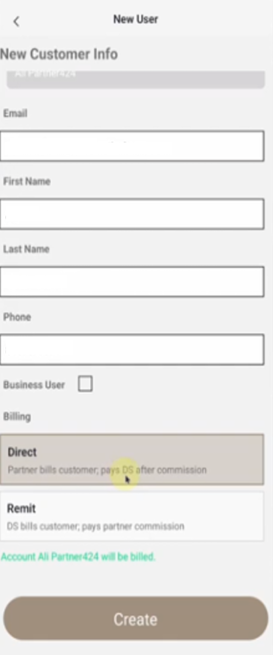
- Click Add New and enter customer details (email, first/last name, phone).
- Choose a billing type: Direct (you bill the customer) or Remit (Deep Sentinel bills the customer).
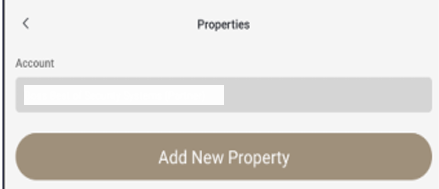
- Click Add New Property (partner name auto-fills).
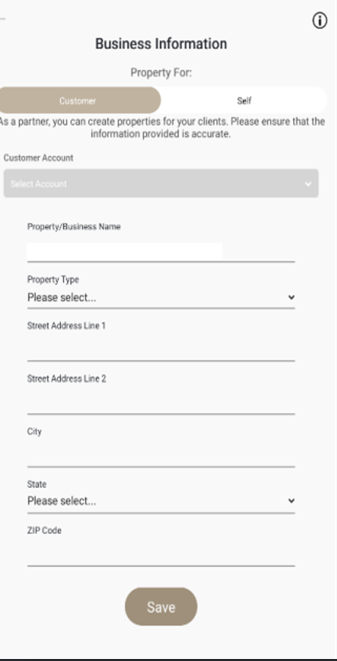
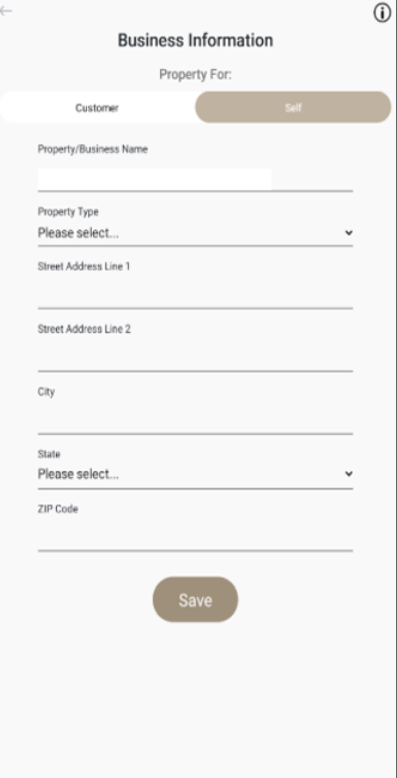
- Enter property details (name, type, full address) and click Save.
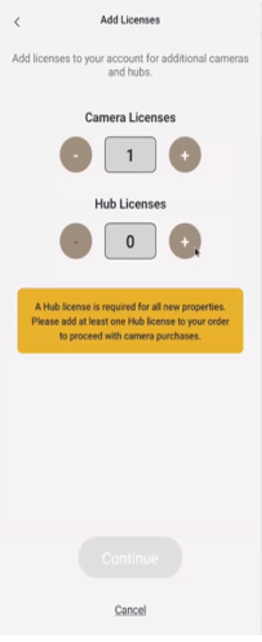
- Add licenses (Hub required + Cameras).
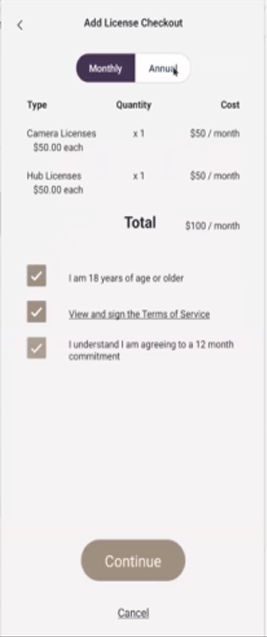
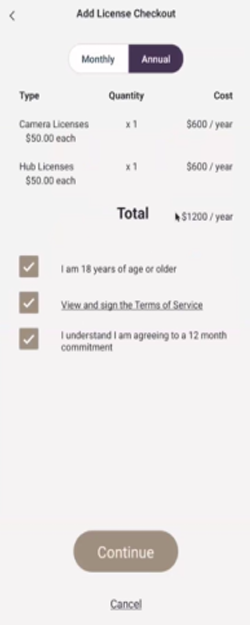
- Review Monthly or Annual pricing and select a plan.
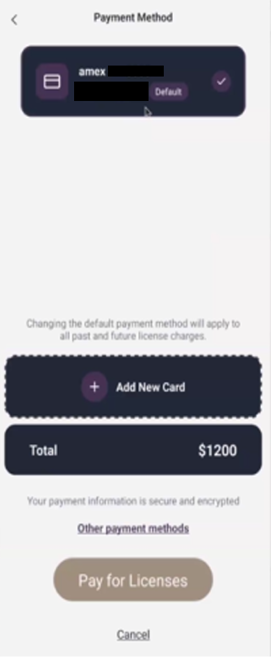
- Add a payment method and complete the purchase.
- After payment, add the Hub and Cameras.
Step 1
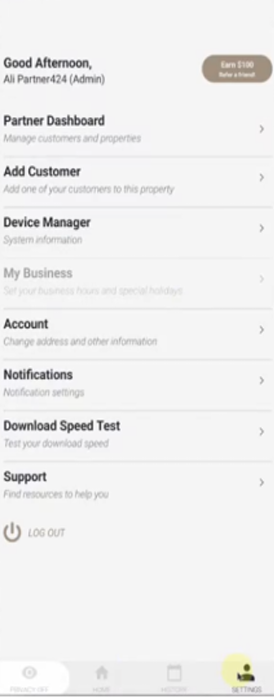
First create a new customer, go to Settings > Account.
Step 2
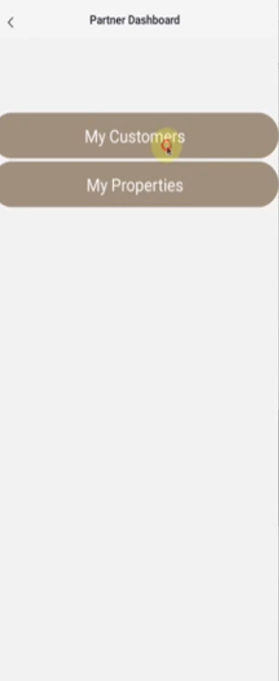
Click on My Customers.
Step 3
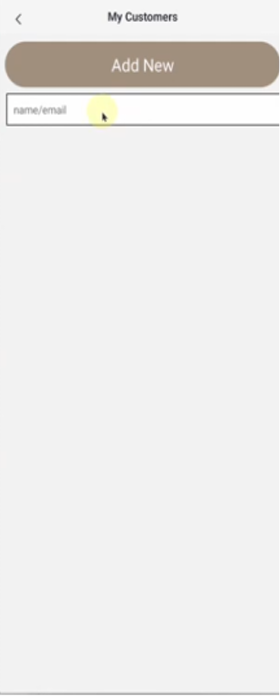
Click Add New.
Step 4
Enter the customer information in the required fields:
Email, First Name, Last Name, and Phone Number.
Billing Options:
- Remit: Deep Sentinel bills the customer. Partner receives commission.
-
Direct: Partner bills the customer. Deep Sentinel bills the partner after commission.
Step 5
Go to Add New Property. Your business (partner company) name will appear here.
Step 6
Enter the business or residential details, including the property/account name and full address.
If you selected Remit earlier: Select Customer here.
If you selected Direct earlier: Select Self here.
Step 7
Select a Property Type that fits the description. Once all information is filled out, click Save.
Step 8
You will be prompted to add licenses. All hubs and cameras require a license.
Select how many hubs and cameras will be added to the property.
Step 9
Review the monthly subscription view.
Step 10
Review the annual subscription view (optional).
Step 11
Add a payment card to pay for the licenses. This can be either your card or the end user’s, depending on who will be paying for the subscription.
NOTE: If you selected Remit earlier, you can activate the 5-day licenses on this screen by selecting Other payment methods (see screenshot below)
Step 12
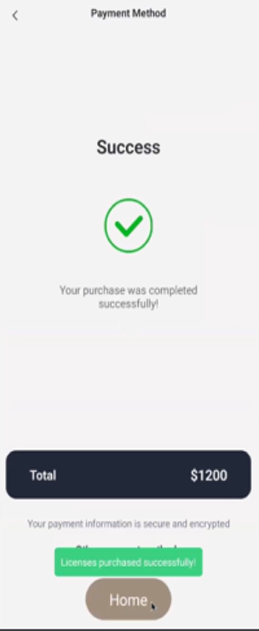
Once payment is successful, you will be able to add hubs and cameras.