General Information
All Deep Sentinel customers and partners with an active Deep Sentinel User Account have access to the Customer Web Portal (CWP).
A user account is created when a customer or partner completes account setup through the Deep Sentinel Mobile App (available on iOS and Android). Once the account is created, the same login credentials can be used to access the Customer Web Portal.
Customer Web Portal:
👉 https://deep.s3ntin3l.com/enterprise/
Billing Tab: List of Accounts (Default View)
The Billing tab is available to all Deep Sentinel customers and partners. However, access to specific billing features may vary based on the user’s role.
For example:
- Waterfall Reporting is available only to the Primary User on an account.
- Secondary users may have limited visibility depending on permissions.
.png?width=670&height=295&name=1%20-%20List%20of%20Accounts%20(default%20view).png)
What You’ll See on the Billing Page
The Billing page provides a consolidated view of your accounts and includes the following information:
- Account Number
- Name on Account
- Property Address
- Total Licenses
(Combined count of hubs, cameras, and accessories) - Billing Type
(Remit or Direct)
At the top of the page, you’ll also find an Account Selection Dropdown.
This allows partners and dealers with multiple accounts tied to a single email address to quickly switch between accounts and manage them all from one centralized location.
Dealer View: Multiple Accounts
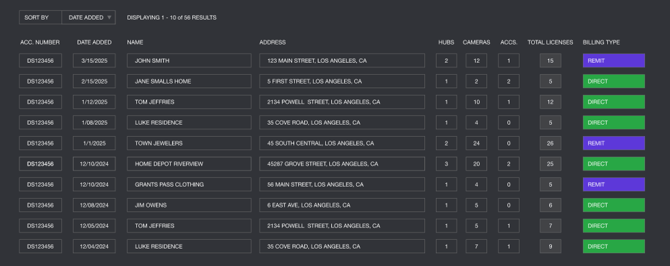
The image above shows what a Dealer account typically looks like when multiple customer properties are associated with a single email address.
Each row represents a separate customer account and displays key details at a glance, including:
- Account Number
- Date Added
- Customer / Account Name
- Service Address
- Number of Hubs
- Number of Cameras
- Accessories Count
- Total Licenses
- Billing Type (Remit or Direct)
This layout allows partners to quickly review and compare multiple properties without needing to open each account individually.
Navigating More Than 10 Accounts
By default, the portal displays 10 accounts per page.
If your dealer profile includes more than 10 properties, the list will automatically paginate.
- Navigation links appear below the account list
- Click the page numbers or navigation links to view the next group of 10 accounts
- Sorting options (such as Date Added) can be used to quickly locate newer or older accounts
This makes it easy for partners managing a large portfolio of locations to efficiently review and access all associated customer accounts in one centralized place.
Billing: Statements
If the user is the Primary Account Holder on a Dealer account, an additional tab labeled Statements will appear within the Billing section of the Customer Web Portal.
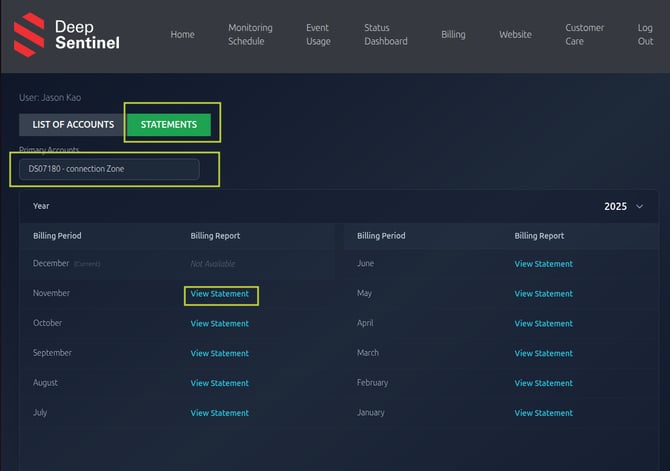
Viewing Statements
When the Statements tab is selected, the user will be prompted to choose which account they would like to view.
This dropdown is only shown if the user has multiple accounts associated with their login.
Below the account selector, a list of billing months is displayed. Each month includes a View Statement link.
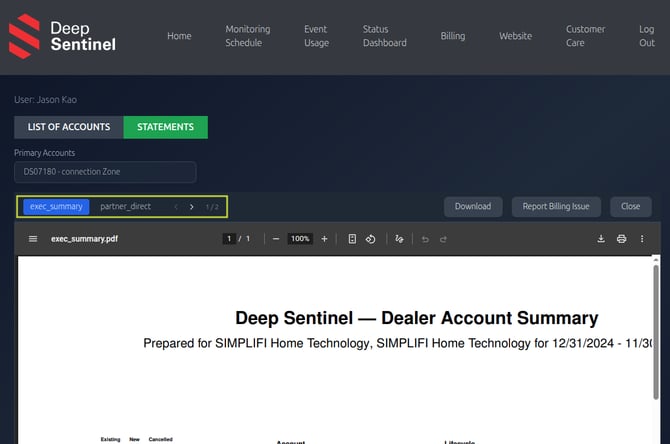
Viewing a Statement PDF
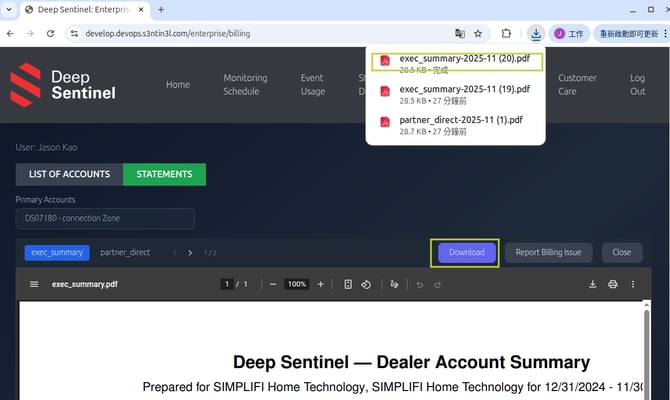
When a Dealer clicks View Statement, the selected month opens in a PDF preview within the portal.
At the top of the PDF viewer, Dealers can switch between different statement views:
- Executive Summary – High-level overview (most commonly used)
- Direct Summary – Detailed view for Direct-billed accounts
- Remit Summary – Detailed view for Remit-billed accounts
Dealers will typically review the Executive Summary, but can select another tab at any time for a more detailed breakdown.
Downloading or Managing a Statement
While viewing a statement in the PDF preview, Dealers can use the action buttons located in the top-right corner to:
- Download the statement
- Report a Billing Issue
- Close the statement view
When Download is selected, the file will begin downloading immediately and will be saved to the default download location on the user’s computer.
Billing: Reporting Issues and Troubleshooting
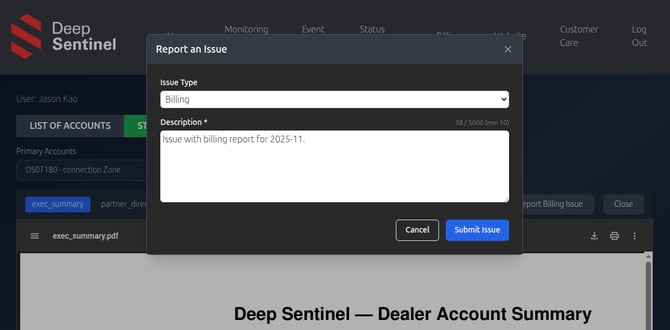
Dealers can report billing concerns directly from the Billing Statements view by selecting Report Billing Issue.
Clicking this option opens a form where the Dealer can describe the billing issue and submit it for review. Once submitted, the report is routed internally for investigation and follow-up.
Please note that this reporting workflow may be updated in the future as improvements are made to the billing support process.
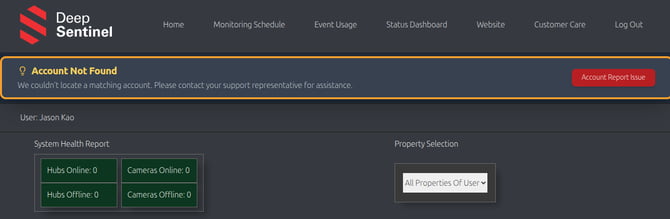
Billing: Errors
If an account cannot be associated with a property address, an error message will appear in the Customer Web Portal indicating that the account was not found.
When this message is displayed, the Dealer or customer should contact Partner Support for assistance so the account can be reviewed and corrected.