
Table of Contents:
- Common Use Cases
- System Requirements
- Step-by-Step Guide
- Data Migration Scope
- Limitations
- Tips and Best Practices
- FAQs
Common use cases:
- RMA — replacing a defective hub
- Hardware recall — swapping a recalled unit for a replacement
- Hardware upgrade — upgrading to a newer hub model
System Requirements:
- The new hub must be fully onboarded, online, and have zero cameras attached.
- The old hub can be online or offline. It must be added to the same property as the new hub.
- Both hubs must be on the same LAN/VLAN.
- Hub Firmware and App version must both be fully up to date.
Step-by-Step Instructions:
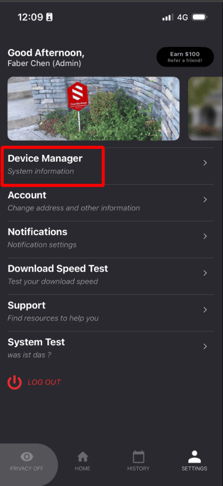
1. In the Deep Sentinel App, navigate to Settings > Device Manager
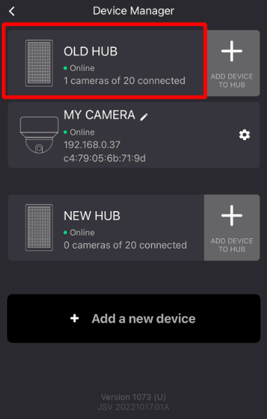
2. Select the Old Hub from the Device Manager
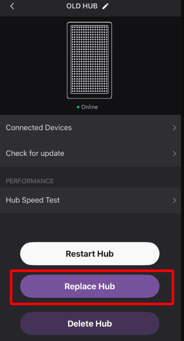
3. Tap Replace Hub at the bottom of the screen
4. The Transfer Hub Data screen appears, listing all hubs in the property. Select the new hub (the one with no cameras connected) as the transfer target.
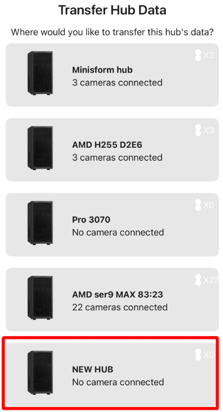
NOTE: If this list is empty, please please onboard the new hub first by going back to the Device Manager and selecting + Add a new device > PoE Hub
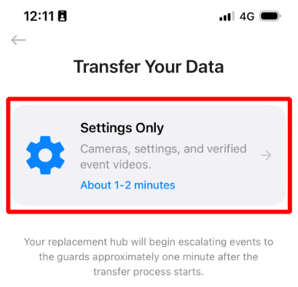
5. On the Transfer Your Data screen, tap Settings Only to transfer camera settings, speaker settings, schedules, and verified event history to the new hub. The estimated time is approximately 1-2 minutes.
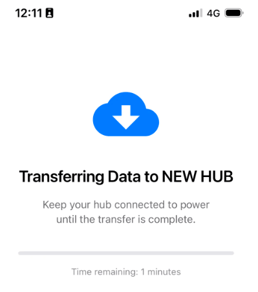
6. Wait for the transfer to complete. A progress indicator will show the transfer status and estimated time remaining. Keep new hub powered on and connected during this process.
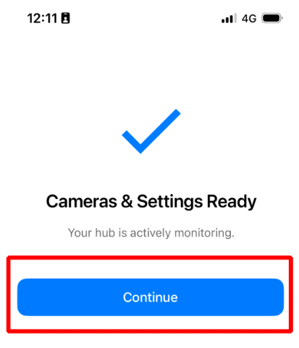
7. Once the process finishes, the screen displays Cameras & Settings Ready with the message "Your hub is actively monitoring." Tap Continue to proceed.
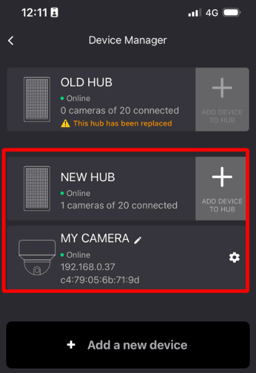
8. Go back to Device Manager to confirm the results:
- The old hub should show 0 cameras and a warning: "This hub has been replaced"
- The new hub should show all of the transferred cameras
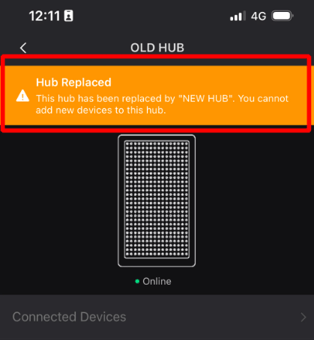
9. Tap on the OLD HUB to see its detail screen. An orange banner at the top displays "Hub Replaced" with the message: "This hub has been replaced by NEW HUB. You cannot add new devices to this hub."
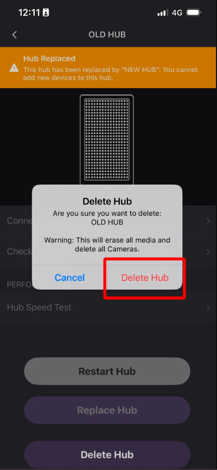
10. If you no longer need the old hub, tap the "Delete Hub" button at the bottom of the old hub's detail screen. A confirmation dialog will appear warning that this will erase all media and delete all cameras. Tap "Delete Hub" to confirm.
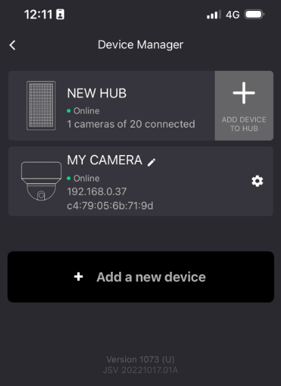
11. After the old hub is deleted, the Device Manager now shows only the NEW HUB with the transferred camera(s). The hub swap process is fully complete.
Data Migration Scope
What is Transferred:
|
Data |
Details |
|---|---|
|
Camera settings |
Friendly name, privacy time, protection zones, metadata |
|
Speaker settings |
All linked speaker info and camera pairings |
|
AI Deterrence Schedule |
Fully transferred |
|
Privacy Schedule |
Fully transferred |
|
Business Hours |
Fully transferred |
|
Verified event history |
Accessible from cloud |
What is NOT Transferred:
|
Data |
Details |
|---|---|
|
Non-escalated events & videos |
Local recordings are NOT transferred |
|
Sentinel Now devices |
Not included |
|
Smart Snooze information |
Not included |
|
Non-verified event thumbnails/videos |
Not included |
Limitations:
-
No video/media transfer: Non-escalated event videos and thumbnails stored on the old hub are NOT transferred to the new hub.
-
Firmware upgrade blocked: Neither hub can upgrade firmware during the swap process.
-
New hub must be clean: The new hub must have zero cameras. Simply removing cameras is not sufficient — the hub must be factory reset (deleted and re-onboarded).
-
Old hub auto-cleanup: After the swap completes, the old hub automatically removes all its camera and speaker records.
Tips and Best Practices:
-
Ensure both hubs are running the latest firmware before starting the swap
-
Keep both hubs powered on and connected to the same LAN during the process
-
Verify the new hub has zero cameras before initiating the swap
FAQs
Q: Can I swap to a hub that already has cameras?
A: No. The new hub must have zero cameras and be factory reset.
Q: What happens to the old hub after the swap?
A: It is marked as "Hub Replaced" and can no longer have new devices added. You can optionally delete it from Device Manager.
Q: What if my old hub is offline?
A: You can still perform the swap. Settings are restored from the cloud.
Q: Will I lose my escalated events?
A: No. Escalated events remain accessible from the cloud.
Q: Are non-escalated event videos transferred?
A: No. Only settings and escalated event history are transferred. Local recordings remain on the old hub.